Para quien administra
La web de empresas, sección por sección
empresas.vanu.com.uy es el escritorio de la empresa: la misma cuenta y los mismos datos que la app, en una pantalla grande para planificar. Acá está lo que se sumó con la versión de setiembre de 2026: el equipo, la flota, el calendario de asignaciones, la documentación y el replay de cada corrida.
Navegación rápida
Las capturas son de una empresa de prueba: los nombres de las personas y de los recorridos no son reales.
La web se abre en empresas.vanu.com.uy con la misma cuenta que usás en la app. Si te registraste con Google, entrás con el botón de Google; si no, con tu correo y tu contraseña.
Si te invitaron a una empresa
El link de invitación abre una página que dice a qué empresa te suman y con qué puesto. Si ya tenés cuenta en Vanu, entrás con ella y quedás en la empresa; si no, elegís correo y contraseña ahí mismo. El link vence a los 7 días y sirve una sola vez.
Quién ve qué
El puesto en la empresa decide qué muestra la web:
- Dueño: todo, incluida la facturación y el plan.
- Administrador: pasajeros, familiares, instituciones, recorridos, viajes, flota, documentación, calendario, reportes y comunicados. No toca el plan.
- Sin gestión: el inicio con el día de la empresa, el calendario, sus viajes, sus notificaciones y su perfil. En las secciones de administración ve un aviso en vez de la pantalla.
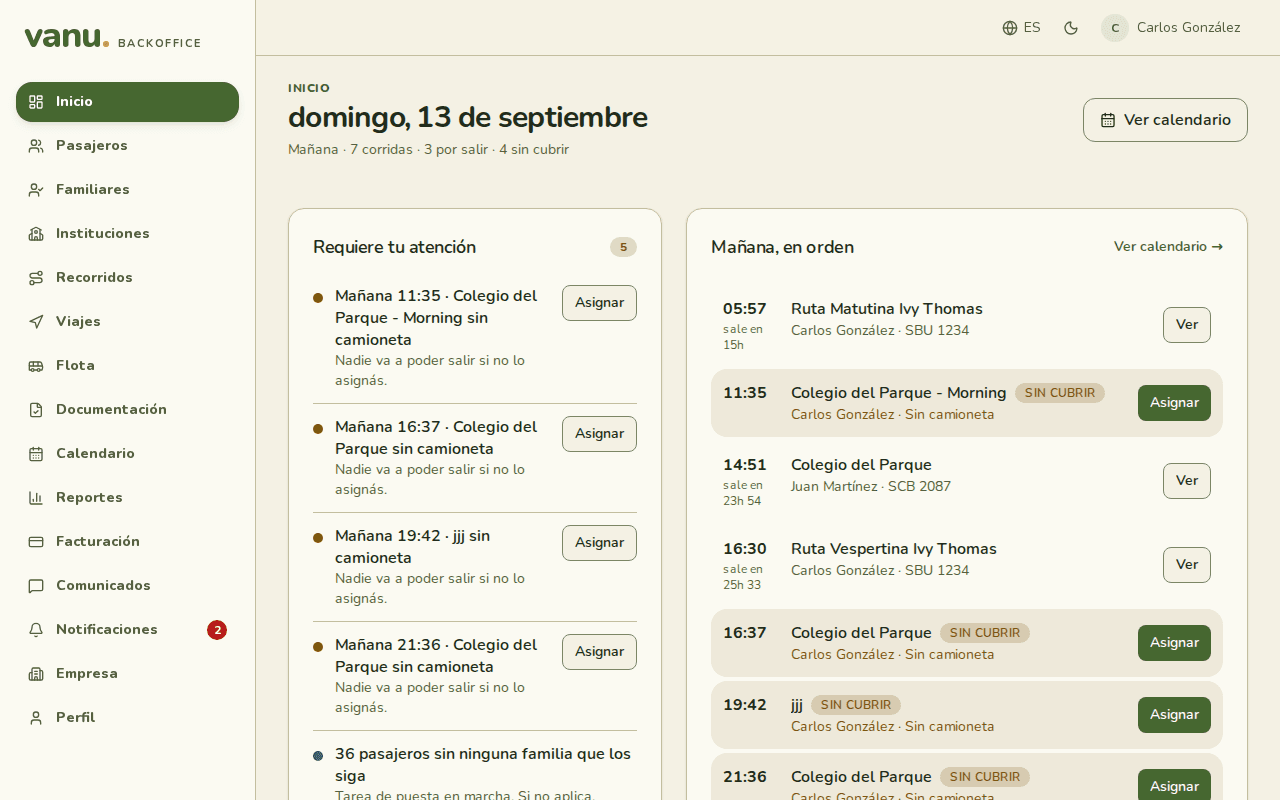
La primera pantalla junta lo que necesita una decisión tuya y cómo viene el día. Arriba, el resumen: cuántas corridas hay, cuántas ya salieron, cuántas están en curso y cuántas siguen sin cubrir.
Requiere tu atención
Una lista corta con lo que bloquea una corrida o espera una respuesta: recorridos sin conductor o sin camioneta, superposiciones, corridas atrasadas, invitaciones por vencer y pasajeros sin ninguna familia que los siga. Cada fila trae el botón que lo resuelve: Asignar, Reenviar, Invitar. Lo que no aplica se oculta y no vuelve.
El día, en orden
Las corridas de hoy, una debajo de la otra, con quién maneja, en qué camioneta y en qué estado está cada una: sale en tanto tiempo, en curso con cuántos a bordo y la próxima parada, hecha, o sin cubrir. Desde acá se abre la corrida en vivo, el replay de la que terminó, o el diálogo de asignación de la que falta cubrir. Cuando el día terminó, dice cuántas se hicieron de las planificadas.
Cobertura de la semana
Debajo, un vistazo a la semana: por día, cuántas corridas están cubiertas y si hay superposiciones. Tocá un día para ir al calendario en esa fecha.
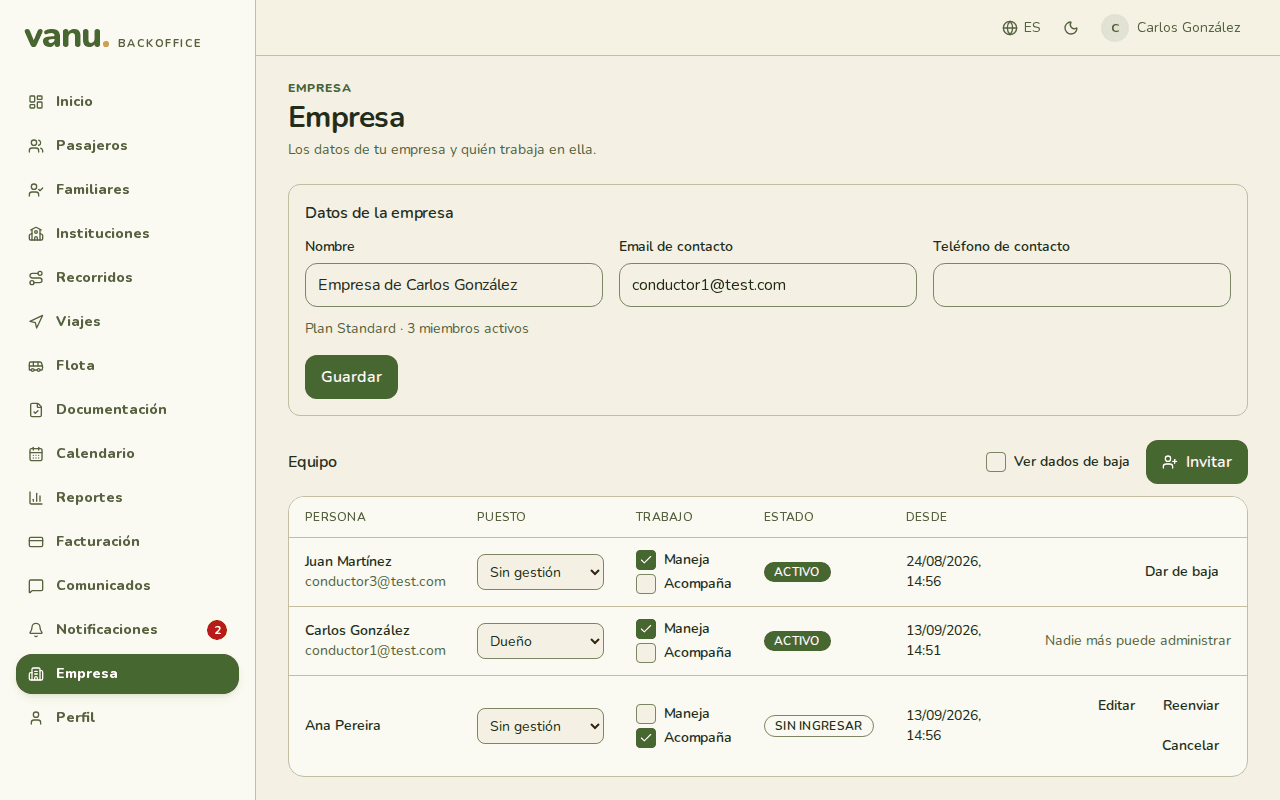
Es la ficha de la empresa y su padrón. Lo que cambies acá se ve igual en la app.
Datos de la empresa
Nombre, correo y teléfono de contacto, y el plan con cuántas personas activas tiene. Guardar aplica los cambios.
El equipo
Una fila por persona con su puesto, su trabajo, su estado y desde cuándo está. El puesto se cambia con el desplegable; el trabajo con las casillas Maneja y Acompaña, que se pueden marcar juntas.
- Puesto: Dueño, Administrador o Sin gestión. Decide qué puede administrar.
- Trabajo: Maneja y/o Acompaña. Decide en qué asiento se la puede planificar; una misma persona nunca ocupa los dos en el mismo viaje.
Si le sacás un trabajo a una persona que sigue planificada con él, la web lista los recorridos y te deja arreglar el calendario primero o sacarla de todos.
La única persona que puede administrar no se puede bajar ni cambiar de puesto hasta nombrar otro Dueño o Administrador.
Invitar
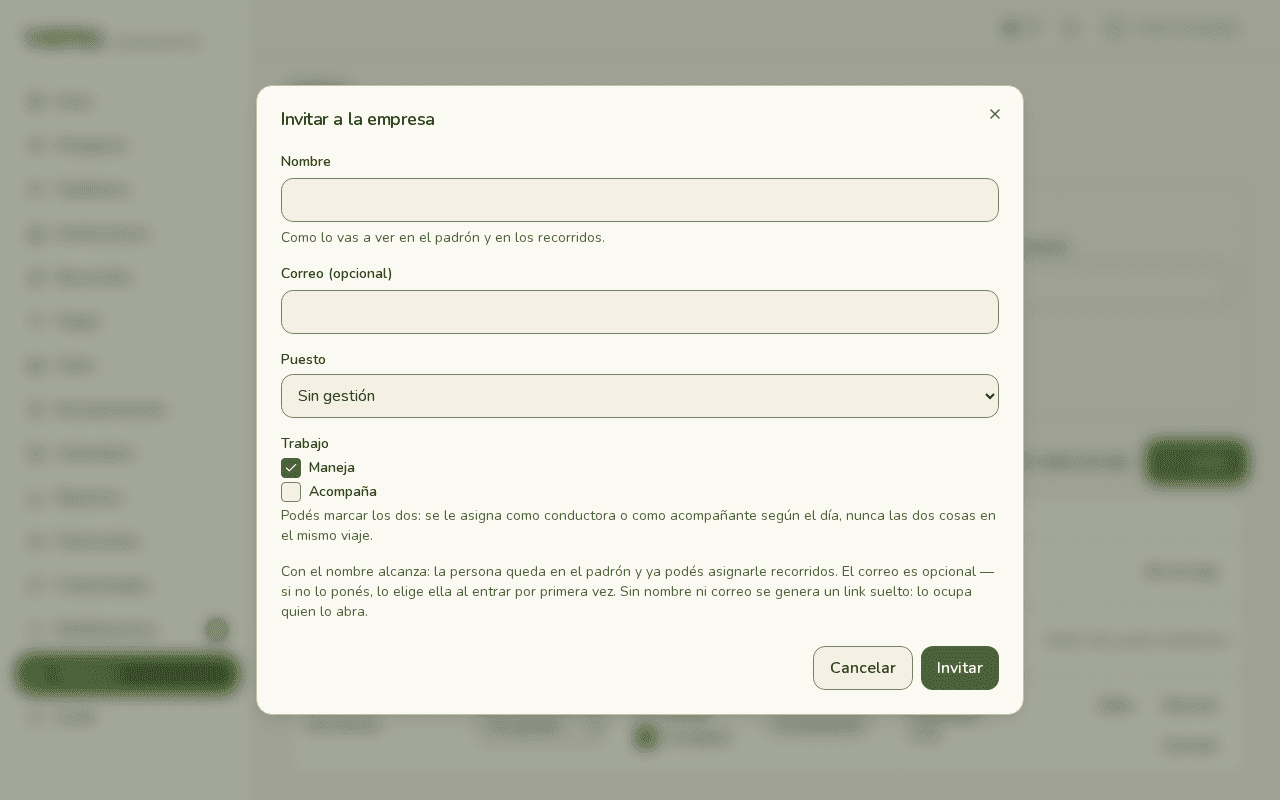
Con el nombre alcanza: la persona queda en el padrón y ya podés asignarle recorridos, aunque todavía no haya entrado. El correo es opcional; si no lo ponés, lo elige ella al abrir el link.
- Tocá Invitar, escribí el nombre, elegí el puesto y marcá el trabajo
- Copiá el link que aparece y pasáselo por WhatsApp; nada se manda por mail
- Mientras diga "Sin ingresar" podés reenviar, editar los datos o cancelar la invitación
Sin nombre ni correo se genera un link suelto: lo ocupa quien lo abra.
Dar de baja
La persona pierde el acceso en su próximo pedido; la empresa conserva el historial de lo que manejó. "Ver dados de baja" los muestra de nuevo.
Si trabajás en más de una empresa
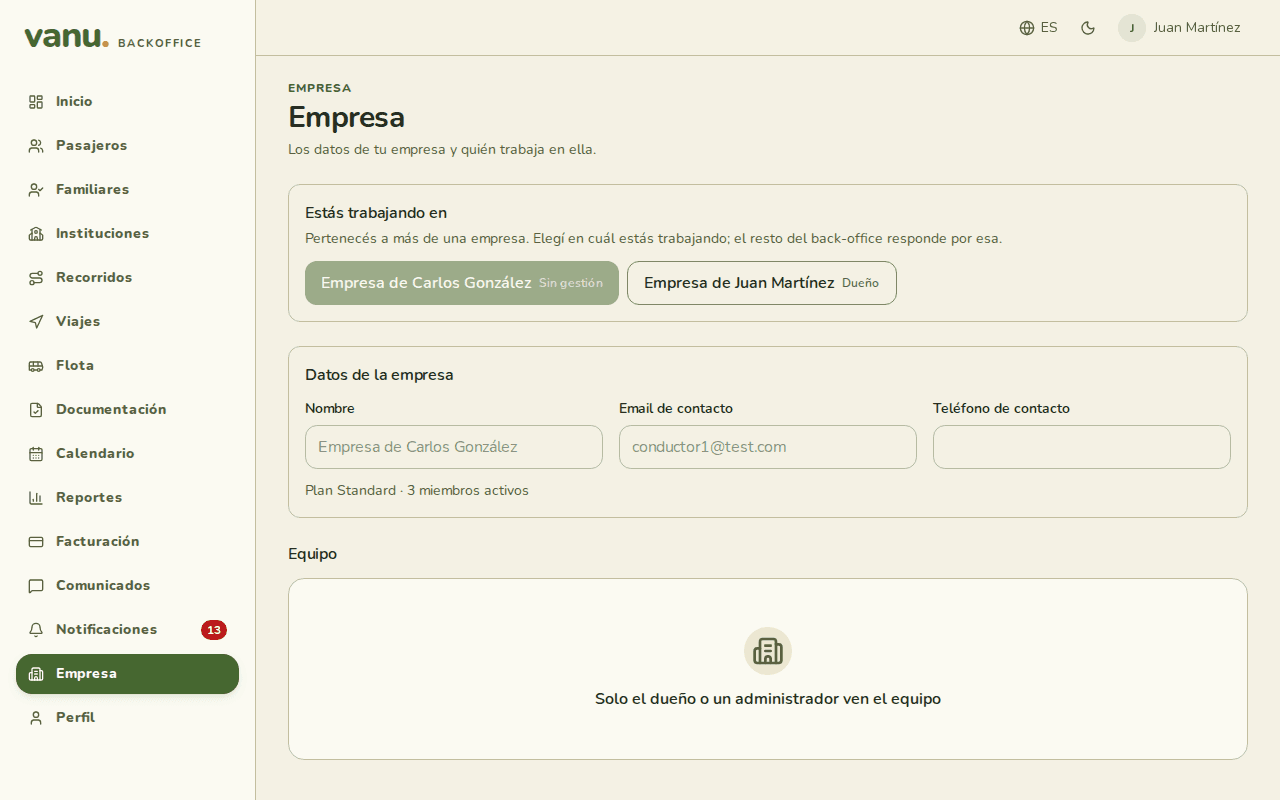
Arriba de la ficha aparece "Estás trabajando en", con una tarjeta por empresa y tu puesto en cada una. La que elijas es la que responde en el resto de la web, y el cambio se ve también en la app.
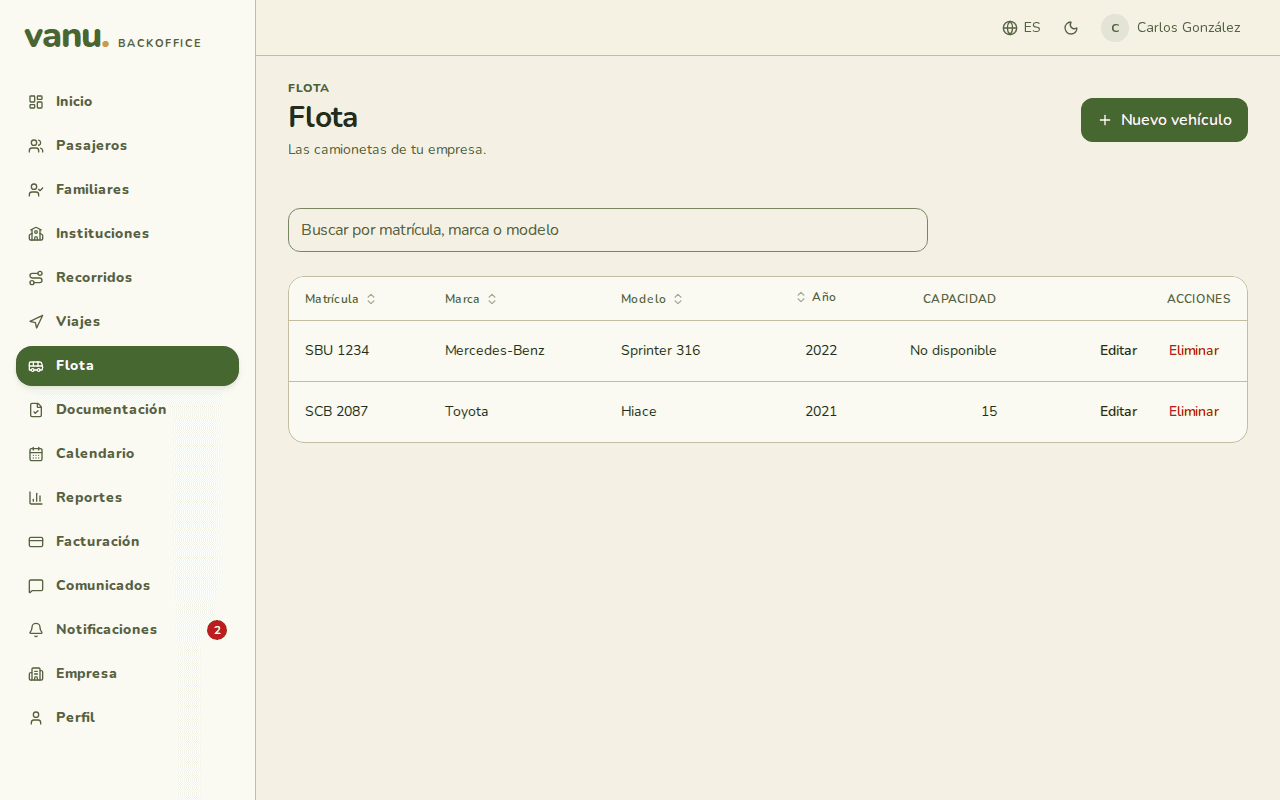
Las camionetas de la empresa, fuera del perfil de una persona. Una tabla con matrícula, marca, modelo, año y capacidad, buscable por cualquiera de esas columnas.
Alta, edición y baja
Nuevo vehículo abre el formulario; Editar y Eliminar están en cada fila. La matrícula no se puede repetir. Una camioneta eliminada sale de la flota y de las asignaciones futuras, no del historial.
Dónde se usa
La camioneta se asigna a un recorrido desde el calendario o desde la ficha del recorrido, en su propia pestaña, aparte del conductor. Sus papeles viven en Documentación ▸ Flota.
Son dos secciones porque son dos cosas. Un recorrido es el plan que se repite: qué días sale, a qué hora y con qué paradas. Un viaje es una corrida con fecha: lo que pasó o va a pasar un día concreto.
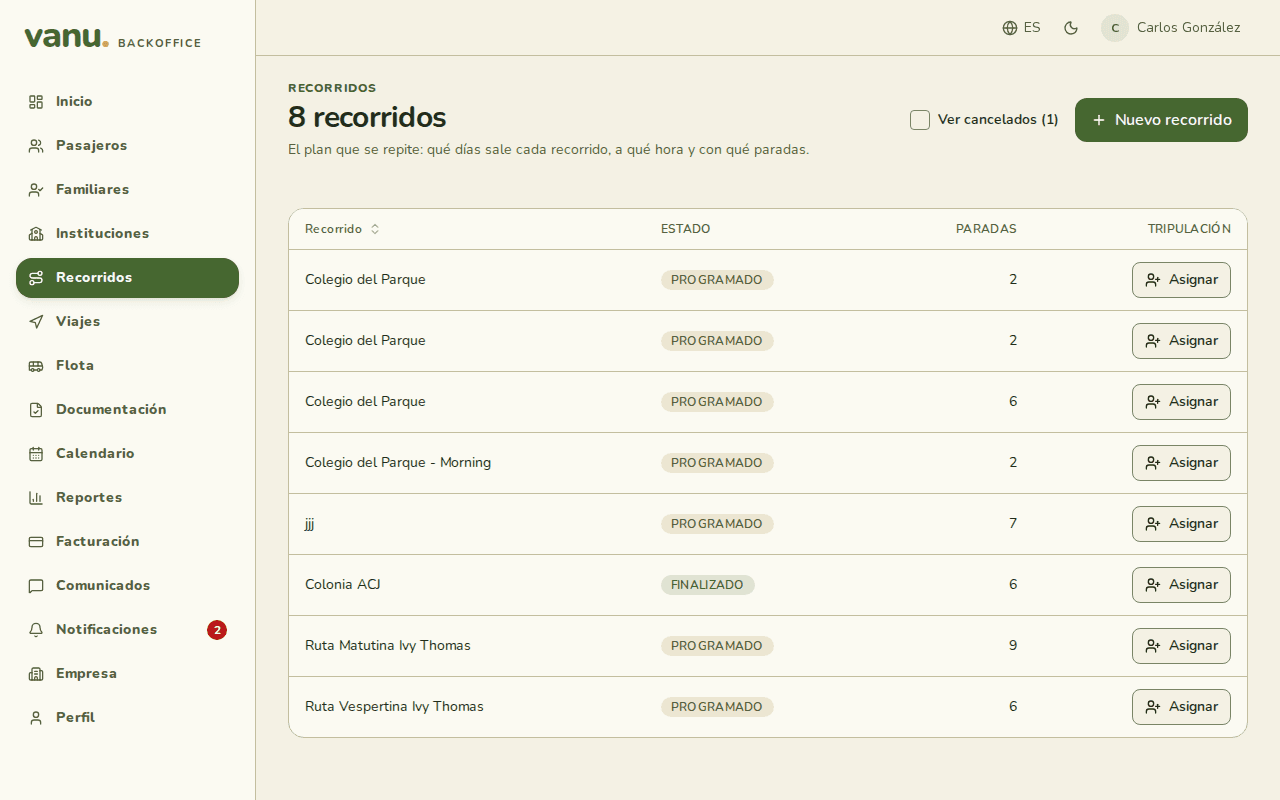
La lista de recorridos
Cada recorrido con su estado, cuántas paradas tiene y el botón Asignar para su tripulación. "Ver cancelados" muestra los que ya no salen.
La ficha de un recorrido
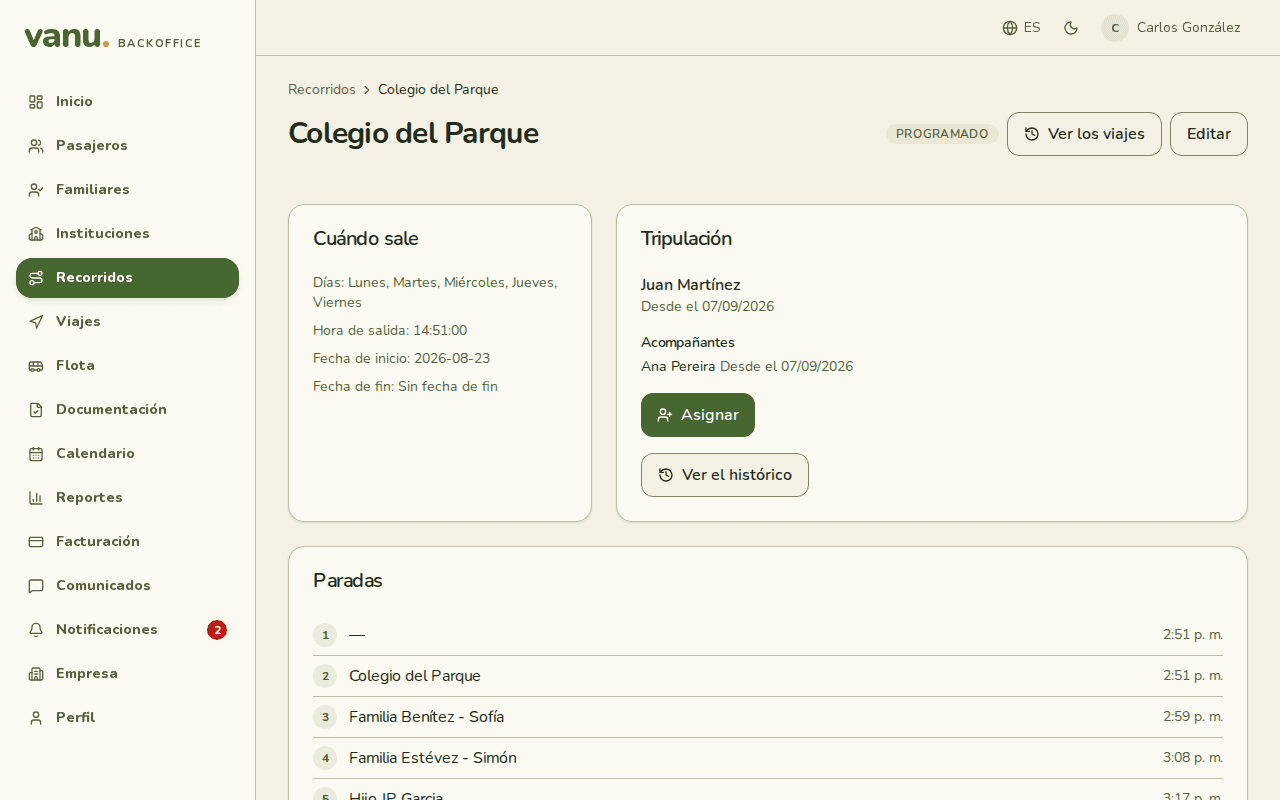
Cuándo sale (días, hora, fechas de inicio y fin), la tripulación vigente (conductor, acompañantes y desde cuándo) y las paradas con su hora. "Ver los viajes" lista sus corridas; "Ver el histórico" muestra cada asignación que tuvo, con su ventana de fechas.
Viajes
Las corridas, con pestañas de activas e historial. Una corrida en curso se abre en vivo; una terminada tiene su replay.
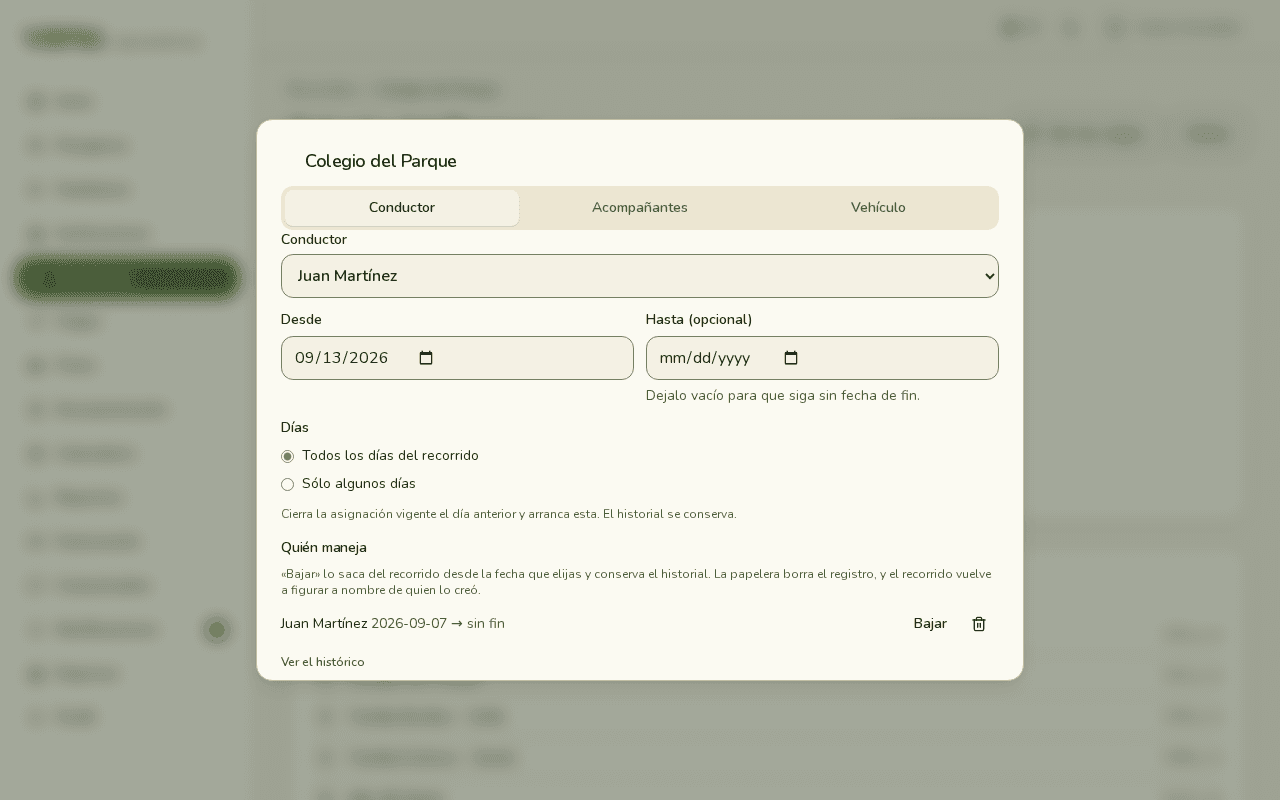
El diálogo de asignación se abre desde la lista de recorridos, desde la ficha, desde el calendario o desde Inicio. Tiene tres pestañas: Conductor, Acompañantes y Vehículo, porque los tres se planifican por separado.
Conductor
Elegí a quién, desde qué día y hasta cuándo (vacío es sin fin). Podés aplicarlo a todos los días del recorrido o sólo a algunos. La asignación nueva cierra la vigente el día anterior; el historial se conserva. "Bajar" lo saca del recorrido desde la fecha que elijas; la papelera borra el registro.
Acompañantes
Se suman de a uno, con su propia ventana de fechas. Sumar o bajar a uno no toca al conductor ni a los demás. Sólo aparece gente marcada como Acompaña en Empresa.
Vehículo
La camioneta se planifica aparte: cambiarla no toca a quien maneja. Sólo se ofrece la flota de la empresa, y la web avisa si se pisa con otro recorrido en esos días.
La misma persona no puede manejar y acompañar el mismo viaje. Un día que ya está en curso o cerrado sigue con la tripulación con la que arrancó: los cambios rigen desde el próximo.
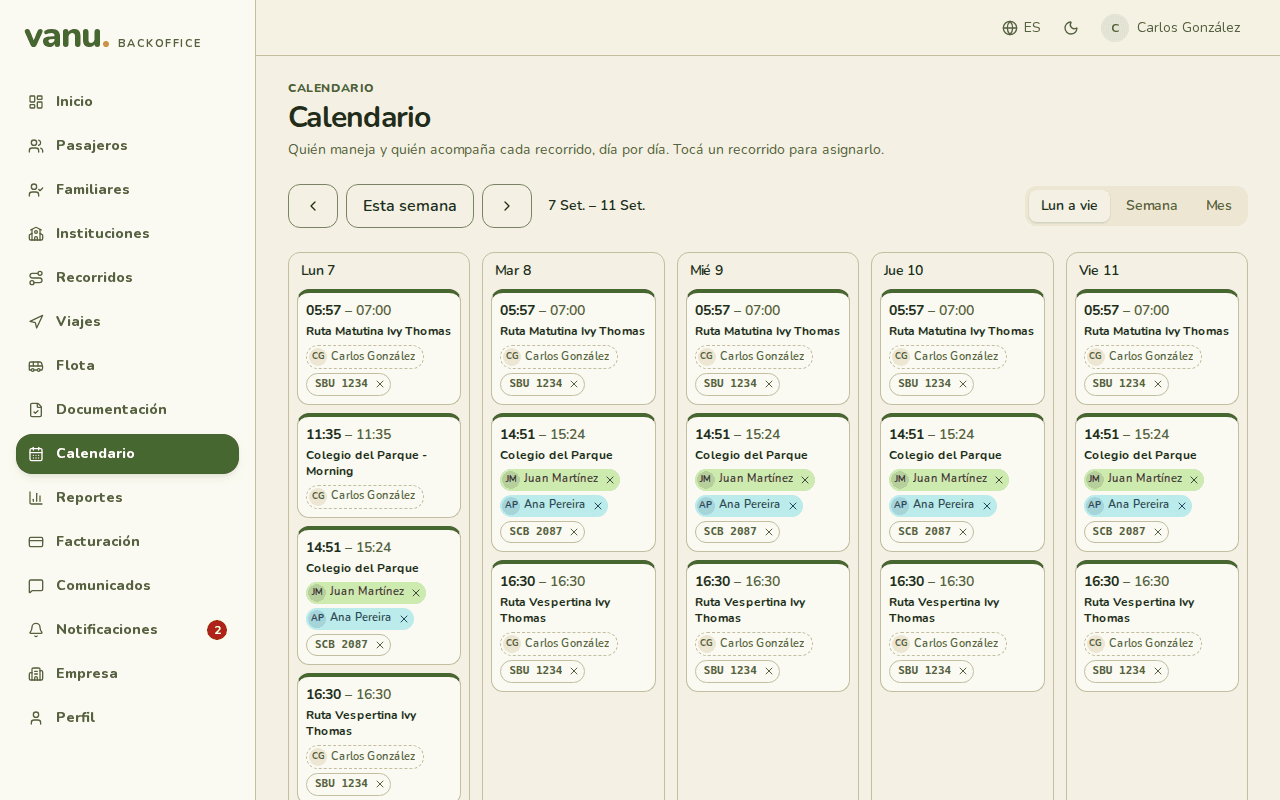
Quién maneja y quién acompaña cada recorrido, día por día. Tres vistas: Lun a vie, Semana y Mes; las flechas cambian el período y "Esta semana" vuelve a hoy.
Leer un día
Cada recorrido muestra su hora y sus fichas: el conductor, los acompañantes y la camioneta. Una ficha gris con × es una asignación de ese día; la × lo quita sólo de ese día, sin tocar el resto de la ventana. Lo que falta aparece como "Sin asignar".
Superposiciones
Si la misma persona o la misma camioneta está en dos recorridos a la misma hora, el calendario lo marca en las dos fichas y lo cuenta arriba. Inicio también lo lista.
Asignar desde el calendario
Tocá un recorrido en el día que quieras y se abre el diálogo de asignación con esa fecha como "Desde".
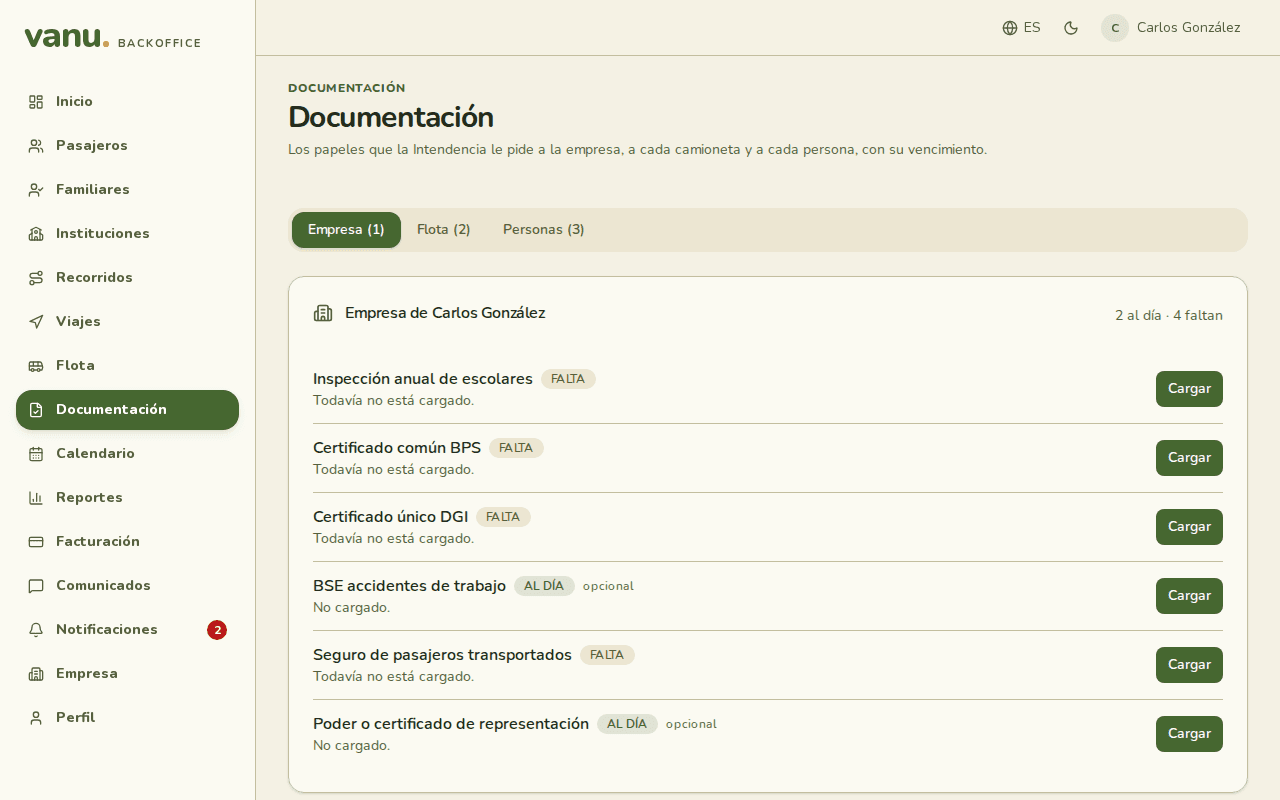
Los papeles que la Intendencia le pide a la empresa, a cada camioneta y a cada persona, con su vencimiento. Tres pestañas: Empresa, Flota y Personas, cada una con su contador de al día, por vencer, vencidos y faltantes.
Los estados
- Al día: cargado y vigente.
- Por vencer: vigente, pero vence pronto.
- Vencido: pasó la fecha.
- Falta: nunca se cargó. Los opcionales no cuentan como faltantes.
Cargar y renovar
Cargar pide la fecha de emisión, la de vencimiento y una referencia (número de póliza, de certificado, categoría de la licencia). Renovar guarda el anterior como historial. El archivo (PDF, JPEG, PNG o WebP de hasta 10 MB) es opcional: para los documentos con datos personales sensibles, por defecto se guarda sólo la fecha.
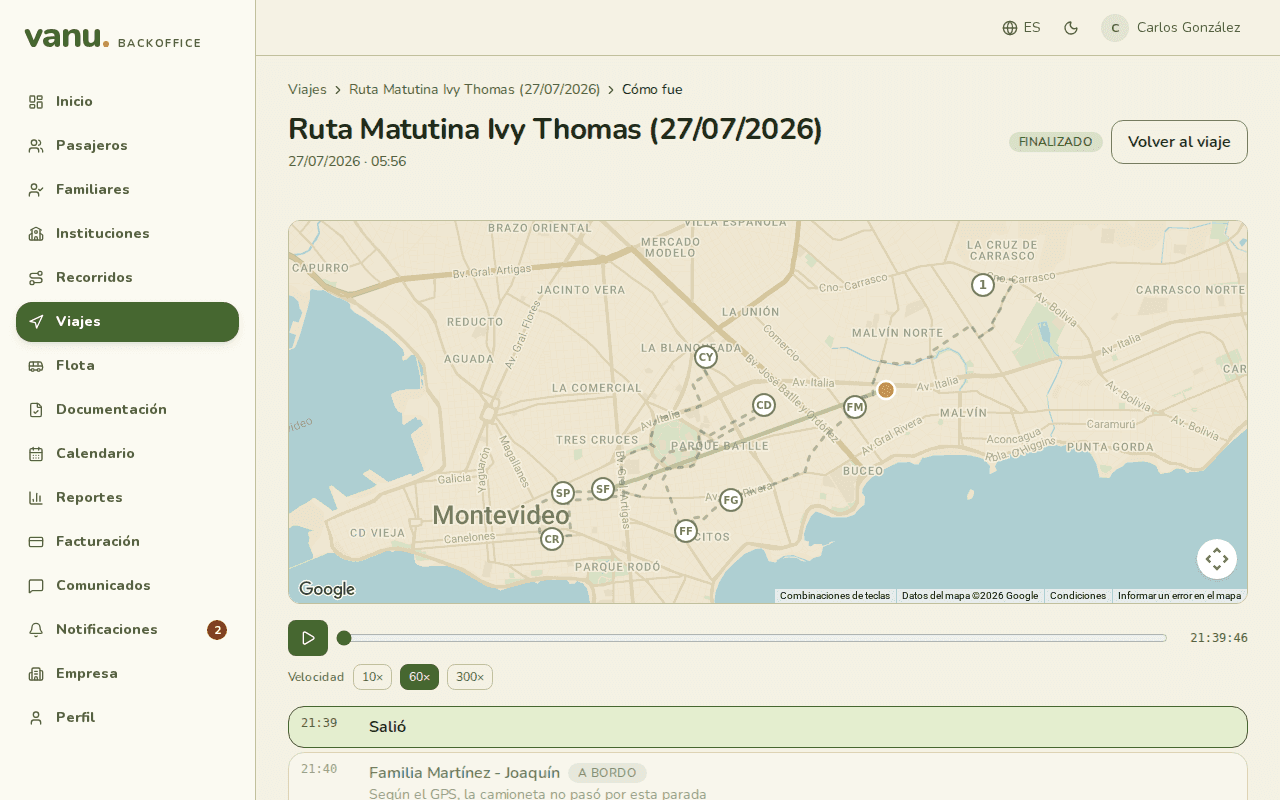
Toda corrida terminada tiene un replay: desde Viajes, o desde Inicio con "Ver cómo fue". Muestra la traza GPS sobre el mapa, quién manejó y desde qué teléfono se compartió la ubicación.
Reproducir
Play recorre la traza a 10×, 60× o 300×; la barra permite ir a cualquier momento. Debajo, la línea de tiempo: la salida, cada marca (a bordo, entregado, ausente), los cambios de teléfono, las excepciones y el fin.
La marca al lado del GPS
En cada parada, la hora de la marca del conductor aparece junto a la llegada según el GPS: si marcó al llegar, minutos después, minutos antes, o si la camioneta no pasó por ahí. Las marcas automáticas se distinguen de las hechas a mano.
Ver en vivo
Mientras la corrida está en curso, la misma pantalla sigue a la camioneta y se actualiza sola. Si termina mientras la mirás, pasa al replay completo.
Y en el teléfono
La empresa, la flota, la agenda y las asignaciones también están en la app del conductor, para resolver algo desde la camioneta.
Ver la guía de la app