The trip in progress

The live trip screen, step by step

It is the screen you use while driving the route. The next stop always at the bottom, navigation built in, and one tap to mark who boarded. Families get every alert without you typing anything.

The screen

Everything you need while driving is in one place, and what you use most stays pinned at the bottom.

1

Starting the route

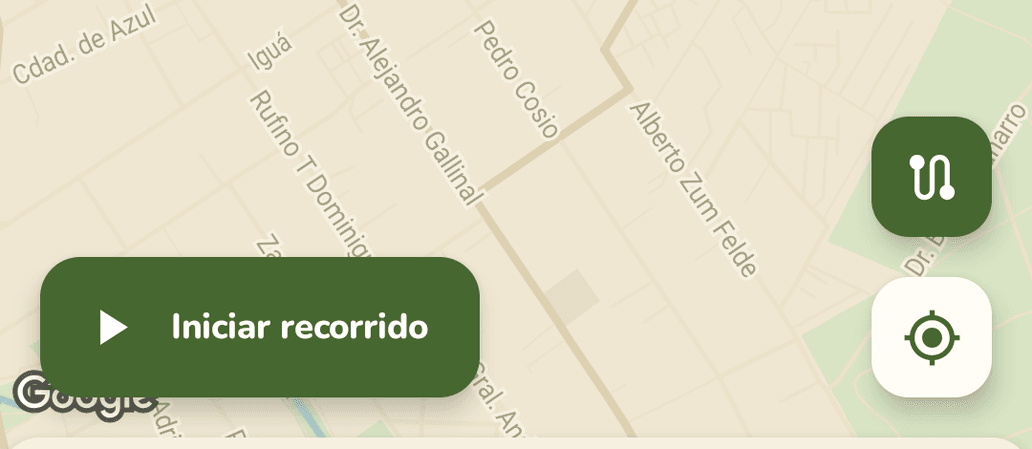
Tap the trip card on Home: you see the route on the map with the distance and the estimated time. "Start route" begins sharing your location and tells the families you have left.
The route map with the "Start route" button.
2

The bar at the top

The whole route as a line: the stops done with a tick, the one coming next, and how late or early you are against each one's planned time.
The progress bar with one stop done and the next at +17 minutes.
3

The dock: the current stop, always at the bottom

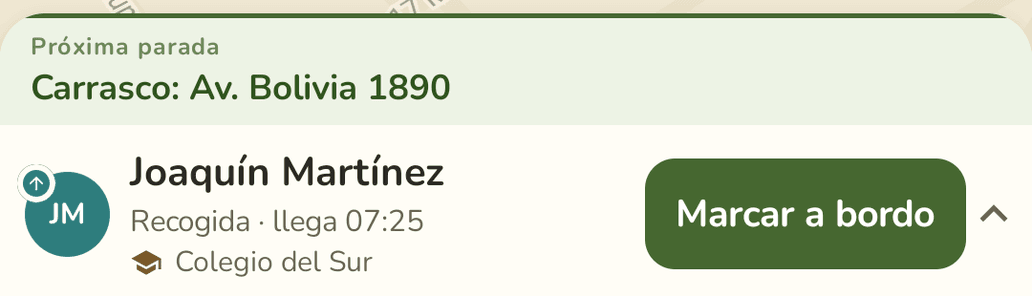
The next stop stays pinned at the bottom with its main action: "Mark aboard" at a house, "Drop off" at the school. The estimated arrival updates on its own.
The dock with the next stop, the passenger and the "Mark aboard" button.
4

Built-in navigation

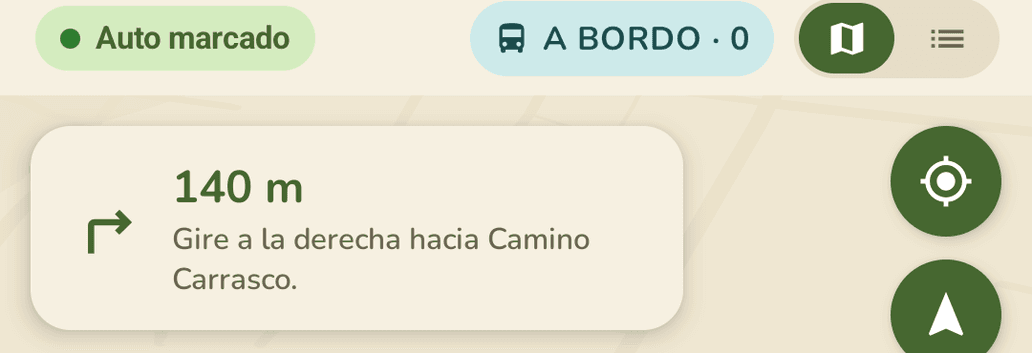
The map follows the van and shows the next turn with its distance. At the top you see whether auto mark is on and how many are aboard; the button on the right switches map and list.
The navigation card: "140 m, turn right onto Camino Carrasco".
5

The list

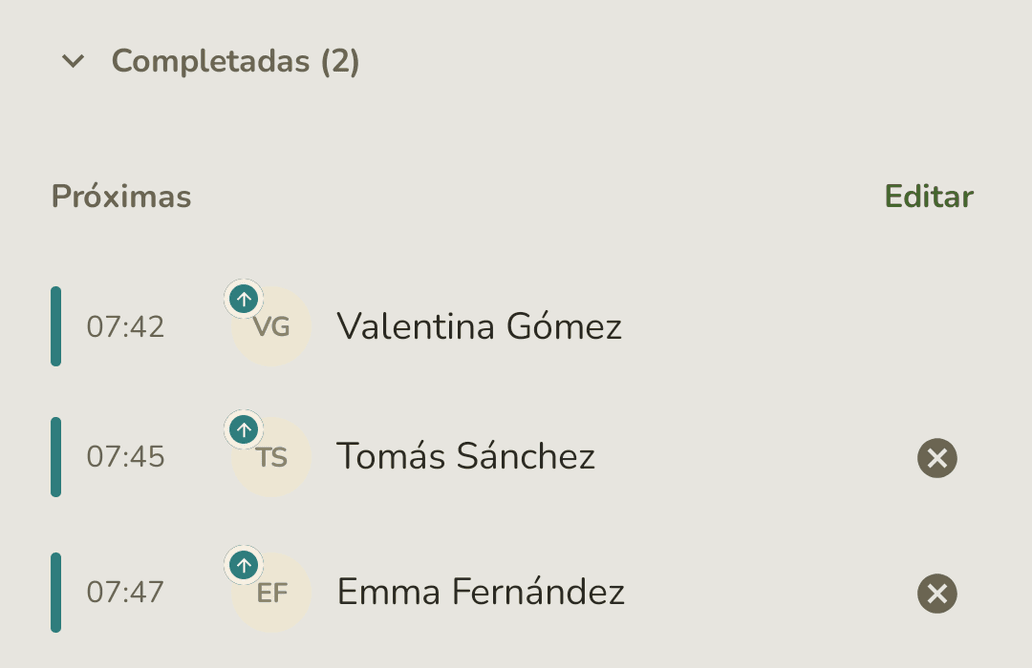
Completed stops fold into their own section. Below, the next ones with their time; the cross cancels a stop you will no longer make, and "Edit" lets you reorder the ones left or add one.
The list view: "Completed (2)" folded and the next stops with their time.

Marking stops

Marking is one tap, and if you forget, the app does it for you.

6

Auto mark, with undo

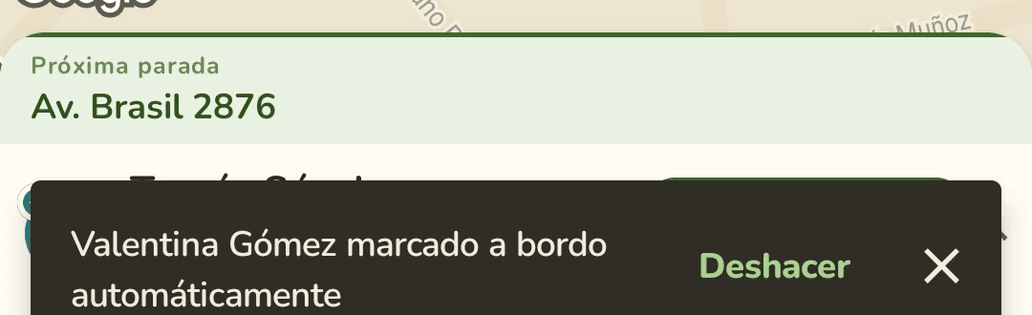
With "Auto mark" on, if you drive away from a stop without marking it the app marks it with its default action and tells you. "Undo" reverts it. It can be switched off in Settings ▸ Live trip preferences.
The notice "Valentina Gómez automatically marked aboard" with the Undo button.

It can also be undone later: in the list, open "Completed" and tap the stop.

7

Drop-off at the school

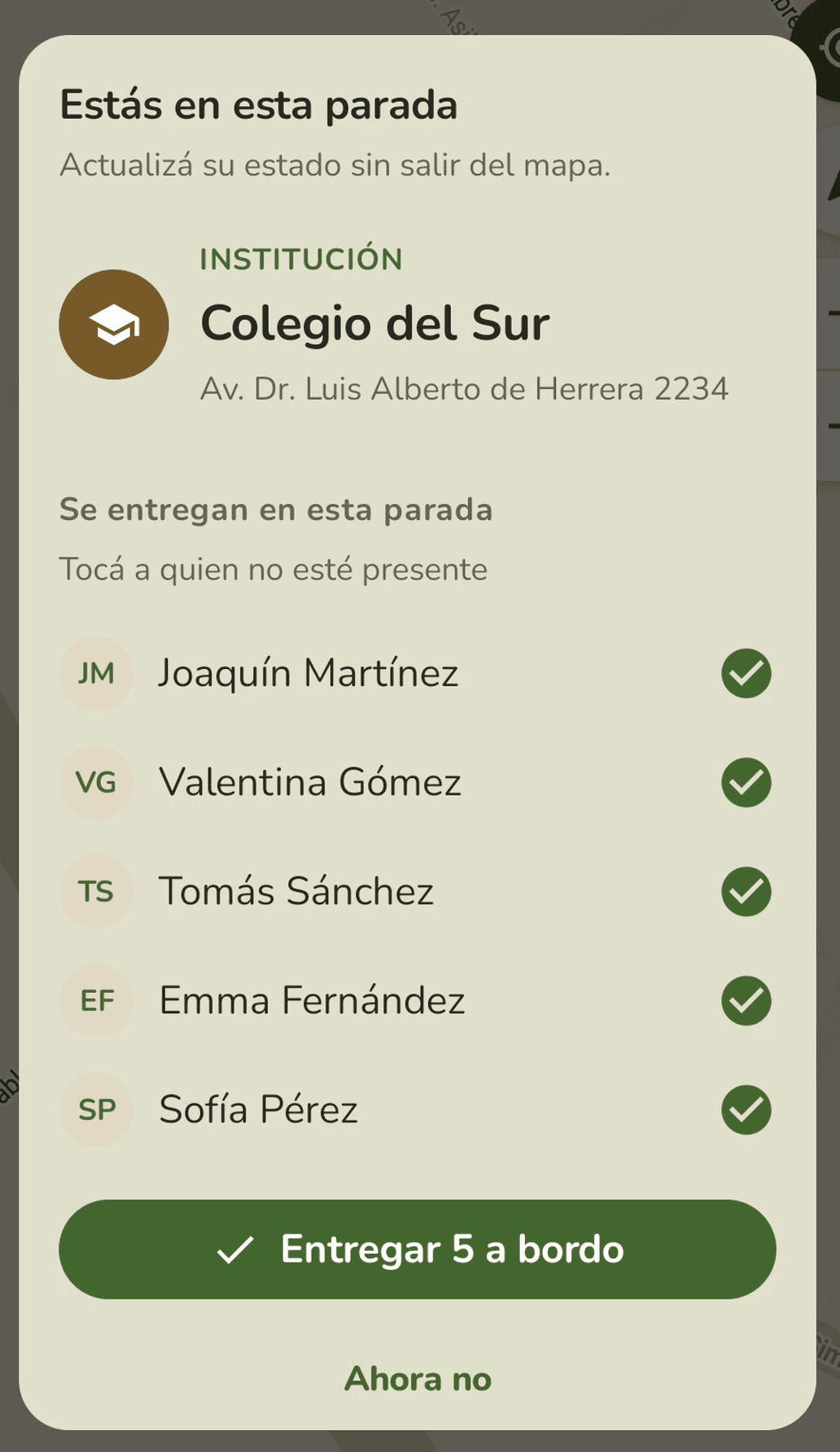
On arrival, a single tap drops off everyone aboard. If someone is missing, tap them in the list and they are recorded as absent, and their family knows.
The school sheet with the five passengers aboard and the "Drop off 5 aboard" button.
8

Finishing

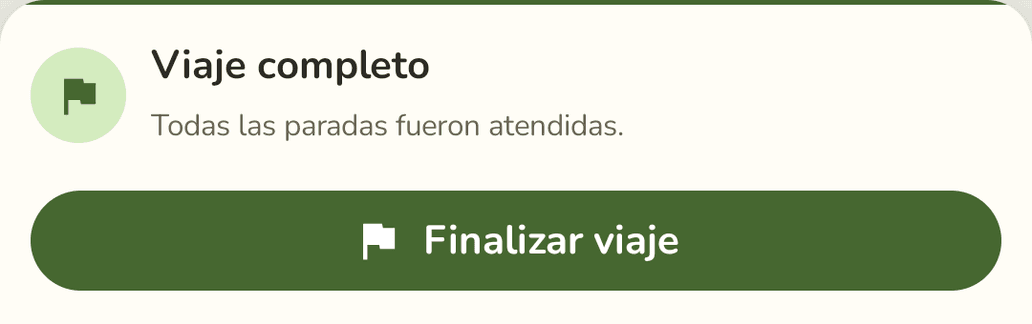
When every stop has been handled, the app says so. "Finish trip" stops sharing your location and tells the families the trip is over.
"Trip complete: every stop was handled" and the "Finish trip" button.

What the family sees

Families do not see you for the whole trip. Each one sees the van from when it is near its stop until their child gets off, and you choose how near.

9

How early they see you

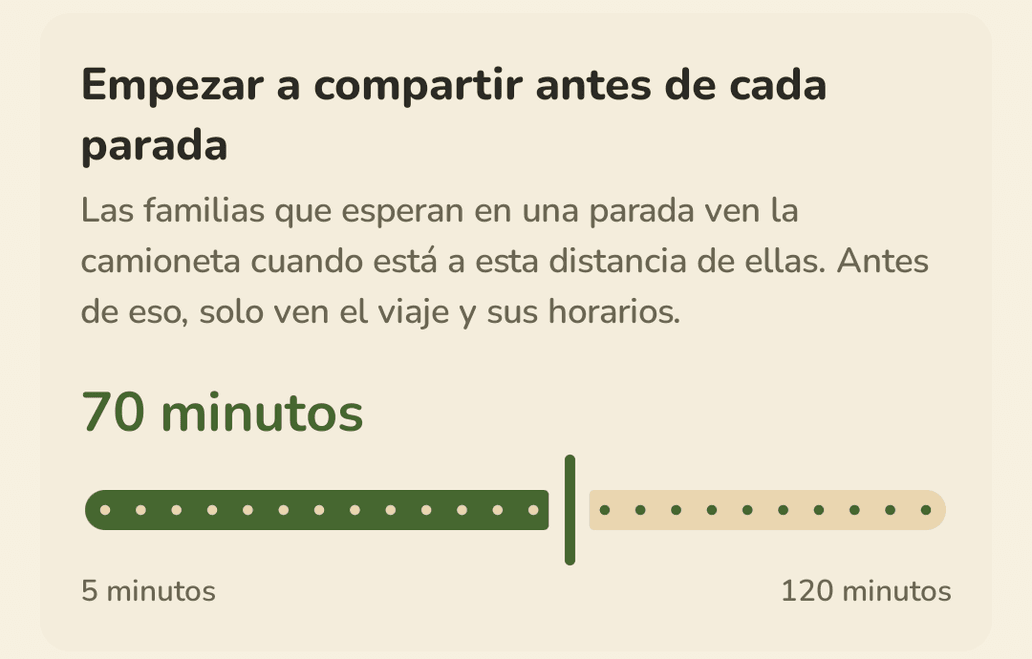
In Settings ▸ Share location you choose from 5 to 120 minutes before each stop. Until then, the family sees the trip and its times, but not the map.
The "Share location" screen with the control at 70 minutes.
10

Before the window

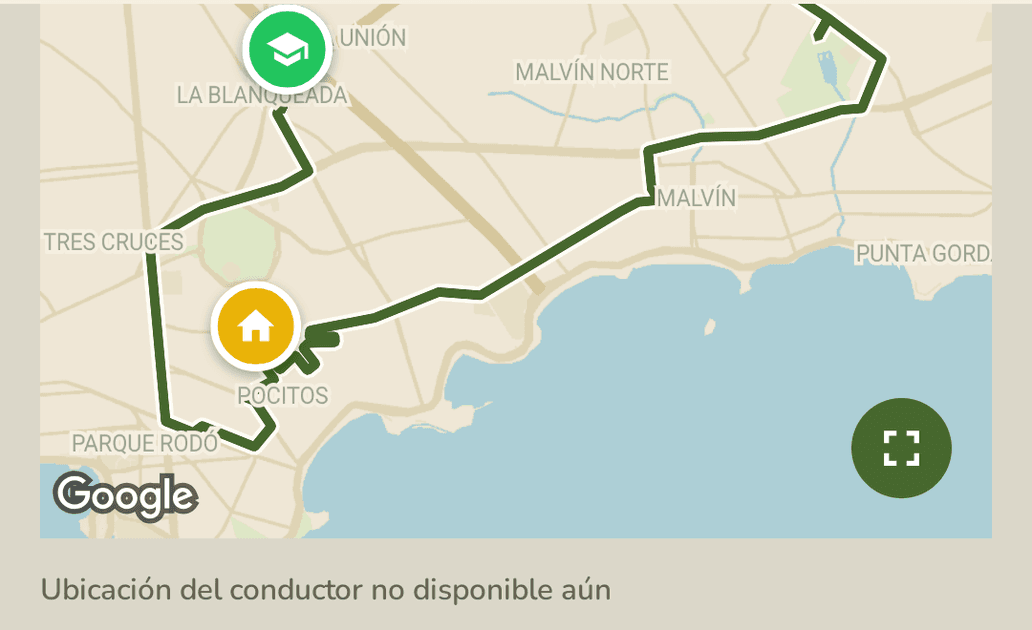
The family app shows the route and the estimated times, and instead of the live map it says "Driver location not available yet". When you enter the window, the van appears and the nearby alert goes out.
The trip detail in the family app before the window: the route and the location-not-available note.

While a passenger is aboard, their family sees the van for the whole ride, until you drop them off. That part does not change with the setting.

The times the family sees are the same ones you see on the dock. If a stop has to be at an exact time, it can be pinned: stop times